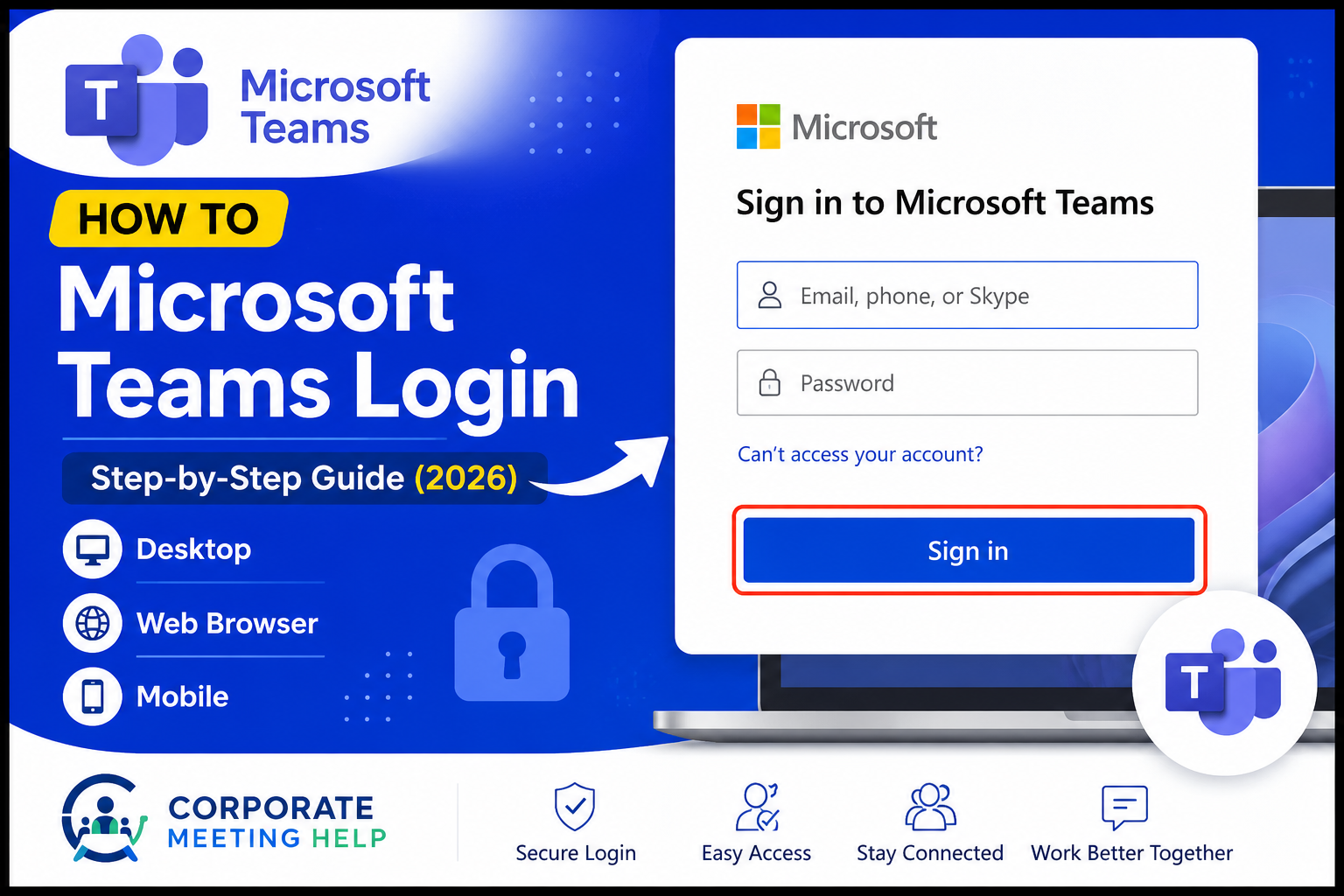
How to Log in to Microsoft Teams (Step-by-Step Guide)
I’ve set up Microsoft Teams on more laptops, phones, and work accounts than I can count at this point — my own, my family’s, and a handful of coworkers who called me over when their screen just sat there spinning. The actual login process is short. What trips people up is usually one of two things: not knowing which kind of account they’re supposed to use, or hitting a verification step they weren’t expecting. This guide walks through both, along with every platform you’re likely to be signing in from.
Microsoft Teams is Microsoft’s chat, video call, and file-sharing hub, bundled into Microsoft 365 for businesses and schools, with a free personal version for everyone else. If you’ve been sent a meeting invite, added to a work team, or told by your IT department to “just log into Teams,” this is the guide for that moment.
Here’s what I’ll cover: signing in on Windows, Mac, the web, Android, and iPhone; switching between a work account and a personal one; staying signed in safely; and fixing the login problems that come up most often. There’s also a FAQ section near the end for quick answers.
Requirements Before Logging In
Before you open the app, it helps to know which of these you’re dealing with:
A Microsoft Account
This is the free, personal kind — the same login you’d use for Outlook.com, Xbox, or Skype. If you signed up for Teams on your own, for personal use, this is what you’re working with.
A Work or School Account
This one isn’t something you create yourself. Your employer or school’s IT team sets it up, usually as your work email address, and it’s tied to their Microsoft 365 or Office 365 subscription. If Teams was installed on your work laptop for you, this is almost certainly the account type you need.
An Internet Connection
Obvious, but worth saying: Teams needs a live connection to authenticate you, even if you’re planning to work mostly offline afterward.
An Updated App (or Just a Browser)
If you’re using the desktop or mobile app, make sure it’s current — outdated versions occasionally get stuck on sign-in screens after Microsoft pushes security updates. If you’d rather skip installing anything, the web version works in any modern browser.
How to Log in to Microsoft Teams on Windows
- Download Teams if it isn’t already installed. Go to microsoft.com/microsoft-teams/download-app and grab the Windows installer, or check the Microsoft Store — it’s often preinstalled on newer Windows 11 machines.
- Open the app from your Start menu.
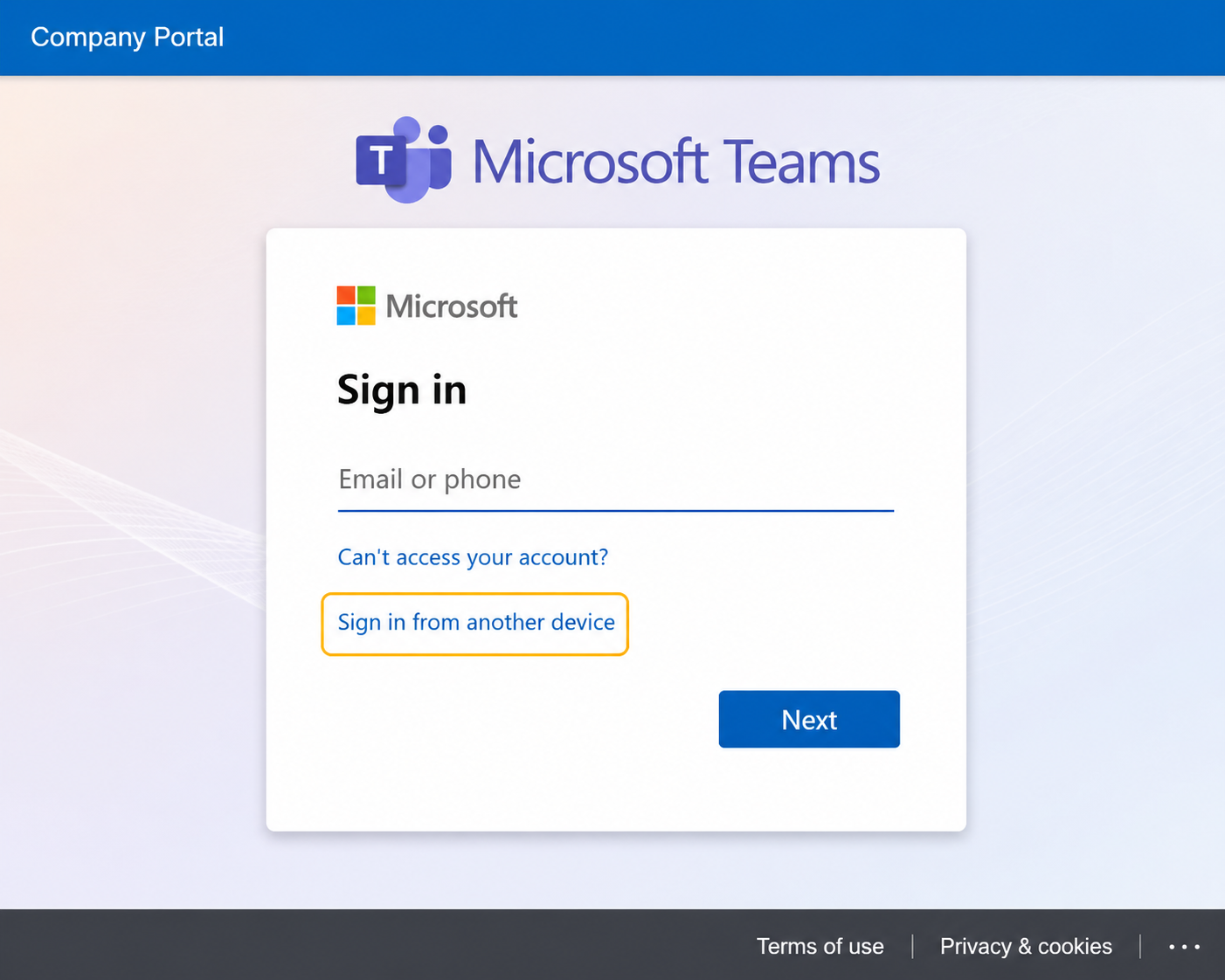
- Enter your email address — either your Microsoft account email or your work/school email — and select Next.

- Choose your account type if prompted. Teams sometimes asks whether you’re signing in with a personal account or a work/school one, since the login flow differs slightly.
- Enter your password and select Sign in.
- Complete verification if your organization requires multi-factor authentication (MFA). This usually means approving a prompt on your phone or entering a one-time code.
- You’re in. Teams will load your dashboard, chats, and any teams or channels you belong to.
How to Log in to Microsoft Teams on Mac
- Install Teams from the Mac App Store or the Microsoft download page if it isn’t already on your machine.
- Open Teams from your Applications folder or Launchpad.
- Sign in with your email address, then your password, exactly as you would on Windows.
- Verify your account if MFA kicks in — check your phone for an approval notification or a code.
- Start using Teams once your dashboard loads.
The Mac and Windows experiences are nearly identical these days, which is a relief if you switch between machines for work.
How to Log in Using a Web Browser
If you don’t want to install anything — maybe you’re on a shared or public computer — the web version covers almost everything the desktop app does.
- Visit teams.microsoft.com in any modern browser (Edge, Chrome, Firefox, or Safari all work fine).
- Sign in with your Microsoft 365 username and password.
- Complete MFA if prompted.
Browser requirements: keep your browser reasonably current. Very old browser versions sometimes render the interface oddly or fail on the authentication step.
Advantages: nothing to install, works on locked-down or shared machines, and it’s handy if you just need to check one thing quickly.
Limitations: a few features, like certain notification settings and some calling capabilities, work a bit better in the desktop app. For regular daily use, most people still prefer installing the app.
How to Log in on Android
- Install the app from Google Play.
- Open Teams and enter your email address.
- Sign in with your password, then complete MFA if it’s required.
- Grant permissions Teams asks for — camera and microphone access for calls, and contacts if you want to find coworkers more easily.
- Turn on notifications so you don’t miss messages or meeting reminders when the app isn’t open.
How to Log in on iPhone/iPad
- Download the app from the App Store.
- Enter your credentials — email first, then password — and complete verification if asked.
- Enable notifications when iOS prompts you, so calls and messages come through.
- Let the app sync your chats, files, and calendar — this can take a minute the first time you sign in.
How to Switch Between Multiple Teams Accounts
A lot of people end up juggling more than one account: a personal one for family group chats, a work account, and sometimes a guest account for a client project. Teams handles this reasonably well.
- Personal account: your free Microsoft account, used for the consumer version of Teams.
- Work account: issued by your employer, tied to their Microsoft 365 tenant.
- Guest account: if another organization invites you into their Teams environment, you’ll show up as a guest there while keeping your own home account elsewhere.
- Switching organizations: click your profile picture in the top corner of the app, and you’ll see an option to switch between the organizations or accounts you belong to. The desktop app also lets you add a second account entirely, so both stay signed in and you can toggle between them without logging out.
How to Stay Signed In
Nobody wants to re-enter a password every single morning. A few settings help with that:
- “Stay signed in” / “Remember me”: Teams and the Microsoft sign-in page usually offer this option during login. On a personal device, it’s fine to use.
- Trusted devices: some organizations let you mark a device as trusted, which reduces how often MFA prompts appear on it.
- Security recommendation: only stay signed in on devices only you use. On a shared or public computer, sign out fully when you’re done, and skip the “remember me” option entirely.
Common Microsoft Teams Login Problems
Most login issues fall into a short list of usual suspects:
Incorrect Password
The most common one by far. Double-check caps lock and any autofill errors before assuming something’s actually broken.
Forgot Password
Happens to everyone eventually. There’s a reset path for both account types, covered below.
Authentication Failed
Often a sign your login token expired, or there’s a mismatch between the account type you’re entering and what Teams expects.
MFA Issues
A missed push notification, an expired code, or a lost authenticator device can all block sign-in even with the correct password.
Account Locked
Too many failed attempts can trigger a temporary lock, especially on work accounts with strict security policies.
App Won’t Open
Sometimes it’s not login at all — the app itself is frozen or failed to update.
Browser Cache Issues
Old cached login data in a browser can cause loops where you sign in successfully but get bounced right back to the login screen.
Network Problems
A weak or restricted connection (hotel Wi-Fi, VPN conflicts, corporate firewalls) can quietly break the authentication handshake.
How to Fix Microsoft Teams Login Issues
Here’s the troubleshooting order I actually work through, roughly from quickest fix to most involved:
- Double-check your credentials. Retype the password manually instead of relying on autofill, and confirm you’re using the right account (personal vs. work).
- Restart the app. Fully close Teams — not just minimize it — and reopen it.
- Check your internet connection. Try loading another site to rule out a network problem first.
- Clear the Teams cache. On Windows, close Teams, then delete the contents of
%appdata%\Microsoft\Teams. On Mac, it’s in~/Library/Application Support/Microsoft/Teams. Reopen the app afterward and sign in fresh. - Clear your browser cache and cookies if you’re using the web version, then reload teams.microsoft.com.
- Update the app. An outdated Teams client is a surprisingly common cause of sign-in failures after Microsoft rolls out backend changes.
- Reset your password if you suspect it’s genuinely wrong. Personal accounts can be reset at account.microsoft.com. Work or school accounts usually need to go through your organization’s password reset portal, or a request to IT if self-service reset isn’t enabled.
- Check for an account lock or license issue. Work accounts need an active Microsoft 365 license that includes Teams. If yours was just set up, ask IT to confirm the license and any conditional access policies are active.
- Disable VPN temporarily if you’re on one, since some corporate VPNs interfere with Microsoft’s authentication servers.
- Try a different device or browser to isolate whether the problem is with your machine or your account.
- Reinstall Teams as a last resort on desktop or mobile if nothing else has worked.
- Contact your IT administrator for work accounts — many login failures for business accounts come down to policies (MFA setup, conditional access, expired tokens) that only an admin can adjust.
Microsoft Teams Login Security Tips
- Turn on multi-factor authentication. It’s the single biggest thing you can do to keep your account from being taken over.
- Use a strong, unique password. Don’t reuse your Teams/Microsoft password anywhere else.
- Only download Teams from official sources — Microsoft’s own site, the Microsoft Store, the App Store, or Google Play. Avoid third-party download sites entirely.
- Avoid signing in over public Wi-Fi without a trusted VPN, particularly for work accounts.
- Keep the app and your operating system updated so you’re getting the latest security patches.
- Sign out on shared devices. Never leave a “stay signed in” session active on a computer other people can access.
Frequently Asked Questions
Can I use Teams without Microsoft 365?
Yes. Microsoft offers a free personal version of Teams that only needs a Microsoft account, no paid subscription required. The full business feature set, though, does require a Microsoft 365 plan.
Can I log in with Gmail?
Not directly with a Gmail address as-is, but you can create a Microsoft account using an existing Gmail address as the login email. Once that’s done, you’ll sign in to Teams the normal way, just with Gmail as your username.
How do I reset my password?
For a personal Microsoft account, go to account.microsoft.com and choose the password reset option. For a work or school account, use your organization’s self-service reset page if one’s available, or contact your IT team directly.
Why is Teams asking for verification?
That’s multi-factor authentication, a security step your organization (or Microsoft, for personal accounts in some cases) requires beyond just a password — usually a code or an approval tap on your phone.
Can I have multiple Teams accounts?
Yes. You can add both a personal and a work account to the desktop app and switch between them, or sign into different accounts in different browser windows for the web version.
Is Teams free?
The personal version is free, with core chat, calling, and file-sharing features. The business version is included in Microsoft 365 business and enterprise plans, which are paid.
Can I use Teams without downloading it?
Yes, teams.microsoft.com gives you the full web version in your browser, no install needed.
Why can’t I access my work account?
This is usually a licensing issue, an expired password, or a conditional access policy set by your IT department. If your credentials are definitely correct, it’s worth reaching out to them directly.
Can I stay signed in?
Yes, using the “stay signed in” or “remember me” option at login — just reserve that for devices only you use.
How do I log out?
Click your profile picture in the top corner of the app, then choose Sign Out. On mobile, this is usually under Settings.
Conclusion
Logging into Microsoft Teams really comes down to knowing which account you’re supposed to use, entering your credentials, and clearing an MFA prompt if your organization requires one. Once you’re in, it works basically the same whether you’re on Windows, a Mac, a phone, or just the browser. If something does go wrong, work through the troubleshooting steps above roughly in order — most sign-in problems get solved somewhere in the first five.
Worth bookmarking a couple of related guides while you’re here: how to download Teams in the first place, how to join a Teams meeting without an account, and how to reset your password if you haven’t set that up yet.